



Get connected
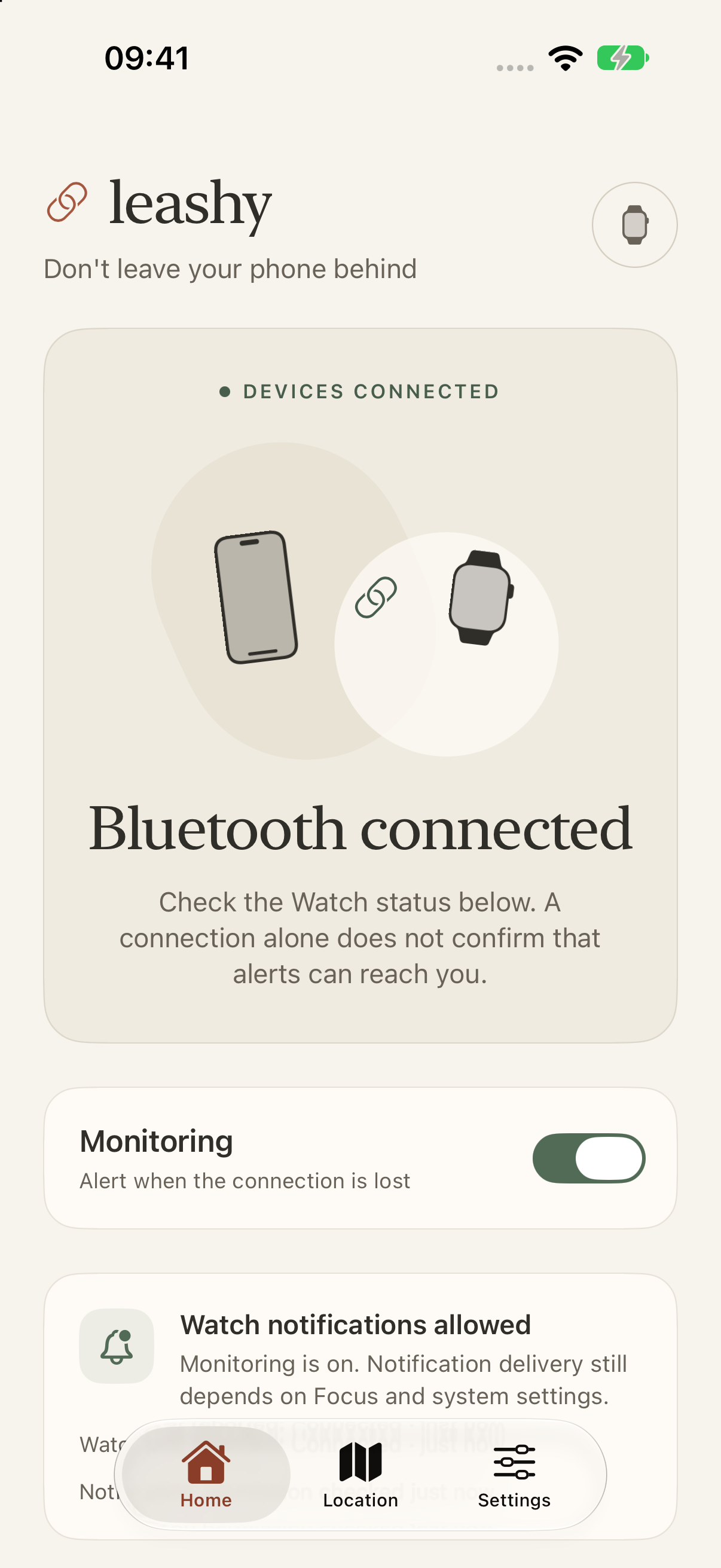
Open Leashy on both devices
Install the app on your iPhone and paired Apple Watch. Keep them close while you set up.
Allow Bluetooth and Watch notifications
Allow Bluetooth on both devices. On your Watch, open Watch alerts → Allow Watch alerts.
Turn on Monitoring
Use the Monitoring switch on your iPhone, then wait for Leashy on your Watch to show Connected.
About connection alerts
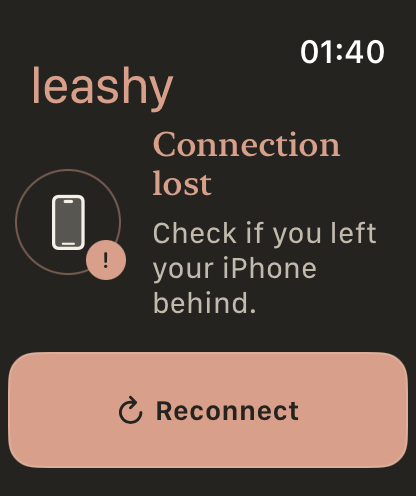
Leashy can alert you on your Watch when its own Bluetooth connection to your iPhone is lost. Apple controls background activity, so detection and alerts may be delayed or missed.
A lost connection is a reminder to check your phone. It does not always mean you left it behind. Location is optional. iPhone notification permission enables optional reminders to check the Watch connection.
Common questions
How do I test an alert?
On your Watch, open Watch alerts → Test alert, then return to the watch face. Look for Leashy test alert. This checks notifications on that device, not separation detection.
To check separation, first wait for Connected. Keep the Watch on your wrist, return it to the watch face and lock your iPhone. Leave your phone in a safe place and move away with your Watch without force quitting either app. Look for iPhone connection lost, then return to reconnect.
Does switching off Bluetooth in Control Center test separation?
No. Tapping the Bluetooth icon in iPhone Control Center does not completely turn Bluetooth off. Apple Watch is one of the exceptions that can keep using it, so this is not a reliable connection-loss test. Apple explains Control Center Bluetooth.
For a normal separation test, leave Bluetooth on and follow the walking-away steps above. Turning it fully off in Settings is a different, manually induced interruption.
Connected, but are Watch alerts allowed?
Connected describes Leashy’s Bluetooth link. It does not confirm notification permission. On your Watch, open Leashy → Watch alerts, check that notifications are allowed, and try Test alert before relying on a connection reminder.
Why is an alert delayed or missing?
In iPhone Settings → Alert delay, you can allow time for brief disconnections. That delay starts when the system reports the connection lost, not when you start walking. It is not a distance setting.
Background limits, radio interference and device settings can affect detection and delivery. Focus, Silent Mode and Watch notification settings can affect how alerts appear or sound. A missing alert does not prove your phone is nearby.
If Leashy reports a background limit, open it on your Watch and check the connection. Apple explains the background limits.
What does “Connection not confirmed” mean?
Your iPhone cannot confirm Leashy’s connection to the Watch. It does not prove that the devices are apart. Keep them close and open Leashy on both devices to check the connection again.
How does the saved location work?
On iPhone, choose Settings → Save iPhone location and allow location access. The Location tab shows the saved reading. iPhone location on Watch shows its synced copy.
Check the time and accuracy: your phone may have moved since that reading. It is not live tracking after separation. Allow background location with Always access enables updates after significant movement. Open in Maps uses Apple’s Maps service.
How do I delete a saved location?
On iPhone, choose Settings → Your data → Delete history and location. This clears that iPhone’s history and saved location and stops new readings. The Watch removes its saved location and coordinates from its records when it next syncs; event timestamps remain.
Turning off Save iPhone location alone stops new readings but does not erase all previous data. See the privacy policy for details.
Which devices do I need?
Leashy requires an iPhone running iOS 18 or later and a paired Apple Watch Series 6 or later running watchOS 11 or later. Apple Watch SE and Ultra compatibility has not yet been validated. Physical testing to date has used iPhone 16 Pro Max and Apple Watch Series 10 GPS only.
Series 4, Series 5 and Apple Watch SE (1st generation) cannot install this version because they do not support watchOS 11. Being able to install watchOS 11 does not, by itself, confirm another model’s background Bluetooth compatibility. Apple’s compatibility table lists supported system versions; Apple’s Bluetooth session explains the Series 6 or later requirement.